How to Speed Up an Old Laptop Before You Replace It
How-toStorage & Drives
How to Speed Up an Old Laptop Before You Replace It
Six checks, cheapest first. Most slow laptops are fixed by one of the first three, and none of them cost more than a drive.
Published
· Last reviewed
· 9 min read
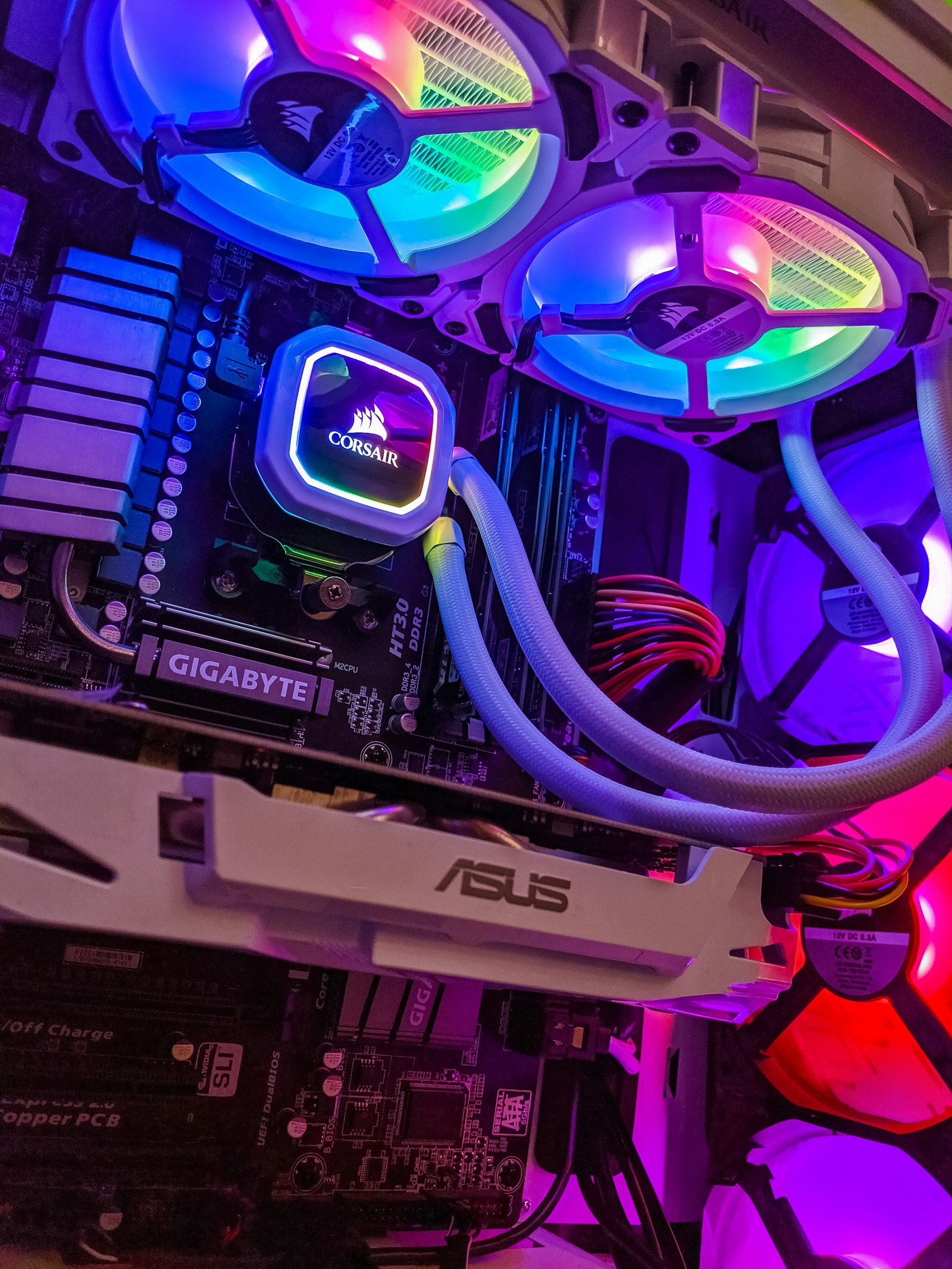
Photograph
Most laptops that feel slow are not slow. They are waiting — for a mechanical drive, for insufficient memory, or for software that is running when it should not be. Each of those has a cheaper fix than replacement.
The short answer: work down this list in order. The first three diagnoses fix the majority of slow machines, and none of them costs as much as a new laptop.
Step 0: Find the actual bottleneck
Before changing anything, identify what is waiting. On Windows, Task Manager’s Performance tab shows processor, memory, disk and network use in real time. On macOS, Activity Monitor does the same.
Open the tabs and then do the thing that feels slow. Watch which resource goes to 100%:
What peaks
What it means
What fixes it
Disk
The drive is the bottleneck
An SSD
Memory
The machine is swapping to disk
More memory, or fewer open programs
Processor
The CPU is genuinely at its limit
Very little — consider replacement
None of them, but it is still slow
Software, startup items or a browser
The cheap fixes below
This one step tells you whether upgrading is worthwhile. If the processor is pegged at 100% while the storage and memory are comfortable, no upgrade will help much.
Fix 1: Replace the mechanical drive with an SSD
If the laptop has a spinning hard drive, this is the largest available improvement and it is not close.
A mechanical drive reads sequentially at roughly 100MB/s and seeks slowly. A SATA SSD manages around 550MB/s with no seek delay at all. That difference is what makes a machine feel responsive: opening applications, switching between windows, and starting up are dominated by small random reads, which is exactly the workload a mechanical drive handles worst.
What to check first:
The drive bay and its form factor — 2.5-inch SATA, or M.2
The M.2 slot’s keying and length if your machine has one
Whether the drive is accessible without removing the mainboard
Storage & Drives
Samsung 990 PRO 2TB
A current-generation NVMe drive for machines with a PCIe 4.0 M.2 slot. On an older laptop with a PCIe 3.0 slot, buy a cheaper drive instead — the speed is not reachable.
Fix 2: Add memory if the machine is swapping
Memory shortages show up as constant disk activity while you work, because the operating system is writing memory contents to disk and reading them back. That is what “swapping” means, and it makes a machine feel slow even with a fast drive.
What to check:
The maximum memory the machine supports, from the manufacturer’s specification
How many slots it has and how many are occupied
Whether memory is soldered, which rules this fix out entirely
Two genuine channels of matched memory also improve integrated graphics performance, since the graphics processor shares system memory. On a laptop with no discrete GPU this is a real, if modest, benefit.
Fix 3: Clean up startup and background software
This costs nothing and frequently gives back more responsiveness than people expect.
Disable startup programs you do not need. On Windows, Task Manager’s Startup tab; on macOS, Login Items in System Settings. Update helper processes, chat clients and cloud sync tools are the usual offenders, and many of them start unnecessarily.
Uninstall software you no longer use. Background updaters and helper services from software you have forgotten about are common.
Check the browser. Extensions consume memory and processing continuously. A browser with fifteen extensions and forty tabs will make any laptop feel slow, and this is often the real cause.
Check for malware and unwanted toolbars. Browser toolbars and bundled software are a persistent cause of unexplained slowness on older machines.
Fix 4: Verify thermal throttling
A laptop that runs hot reduces its own performance deliberately. This is often the reason a machine is fast for ten minutes and slow afterwards.
What to check:
Whether the fan runs constantly at high speed, or never runs at all
Whether the vents are blocked by dust, or by being used on a bed or a soft surface
Whether the underside is hot enough to be uncomfortable
A can of compressed air through the vents and a hard, flat surface often recovers meaningful performance. On a machine that is several years old, dust-blocked heatsinks are a common and entirely fixable cause of slowdown.
Fix 5: Reinstall the operating system
A clean installation removes years of accumulated state: leftover installers, orphaned services, registry cruft and conflicting background software. It commonly produces a machine that feels substantially newer.
Before you start:
Back up everything, and confirm the backup opens on another machine
Collect your licence keys and know your account credentials
Have the installation media ready on a USB drive
This is a couple of hours of work rather than a purchase, and on a machine with an SSD and adequate memory it is often the fix that brings it back.
When to stop and replace
Stop upgrading when the processor is the bottleneck. Two tests:
With an SSD installed and adequate memory, is the machine still slow during normal work?
Does the processor sit at 100% while disk and memory usage are comfortable?
If both are true, the CPU is the limit. No affordable upgrade changes that, and the money is better spent on a replacement.
Also stop when the upgrade requires opening a machine that was not designed to be opened. Some thin laptops have soldered memory and inaccessible storage, and forcing an upgrade on one of those risks the machine.
The upgrade decision by machine age
Machine
Worth doing
Mechanical drive, accessible bay
Replace with an SSD — the best value upgrade available
SSD already, memory upgradeable
Add memory if the machine is swapping
SSD and enough memory, still slow
Clean install, then stop — the CPU is the limit
Soldered memory and storage
Software fixes only, then replace
Data safety during any upgrade
Two rules that apply to every fix above:
Back up before you open the machine. Replacing a drive without a verified backup of the old one is the most common way people lose data during an upgrade. Clone the old drive or copy your files to an external drive, then confirm you can open what you copied.
Keep the old drive. A replaced mechanical drive, wiped or not, is a spare copy of your data and a useful external drive in an enclosure. Do not throw it away until the new setup has run reliably for a month.
Products referenced
Products mentioned in this article
Every outbound link is labelled. Where a link carries no tracking parameter, we
say so rather than implying a commission.
This link points to the manufacturer. No tracking parameter is attached, so we earn nothing from it today.
How this article was written. NovoltGear works from published
manufacturer specifications, standards documentation and the physics that govern how
the hardware behaves. We do not claim hands-on laboratory testing, and where a claim
would require measurement we have not taken, we describe the mechanism and link the
primary source instead. Prices change constantly, so we never quote one as fixed.
Read the full editorial policy.
One email a month, and only when we have something worth saying
New buying guides, price-drop notes and corrections to anything we got wrong. We do not
sell addresses and there is nothing to unsubscribe from by stealth.
Cookies. NovoltGear sets no advertising cookies and runs no analytics. We store
one thing in your browser: a flag remembering that you have read this notice. When you follow a
link from this site to a retailer, that retailer sets its own cookies, so they can credit
a purchase. Read the cookie notice.